Electronic Signature in Word: A 2026 How-To Guide

Electronic Signature in Word: A 2026 How-To Guide

You’ve got a Word document open, the signature block is blank, and someone is waiting on the other side for you to send it back signed. That’s the moment the need for an electronic signature in Word becomes evident. They don’t want legal theory. They want the fastest route from document to approval.

The problem is that Word gives you several ways to place something that looks like a signature, but those methods are not equal. A pasted image is convenient. Word’s Signature Line looks more formal. A dedicated e-signature platform changes the process entirely. If you use the wrong option for the wrong document, you can end up with a contract that looks finished but is weak when someone questions authenticity, consent, or tampering.

I’ve seen this mistake most often in HR packets, sales agreements, and lease documents. The document starts in Word, so teams assume the signature should stay in Word. Sometimes that’s fine. Sometimes it’s exactly where problems start.

Table of Contents

Why You Need a Reliable Electronic Signature in Word

When seeking an electronic signature in Word, the goal is often to solve a simple operational problem. An offer letter, approval form, proposal, or agreement frequently exists in Word, and a signature is needed without printing, scanning, and emailing versions back and forth.

That need isn’t niche anymore. The e-signature market is valued at about $1.53 billion, businesses using e-signatures jumped by roughly 50% in the early 2020s, and 67% of respondents cited increased efficiency as a primary benefit, according to Exploding Topics' roundup of e-signature statistics. That lines up with what operations teams experience every day. Signed documents move faster when they stay digital.

But speed isn’t the only issue. Reliability matters more than the signature graphic itself.

The real question is not how to place a signature

What most tutorials miss is that there are really two separate tasks:

  • Adding a visible mark: putting a name, scribble, or signature line onto the document
  • Creating a defensible record: proving who signed, what they agreed to, and whether the document changed afterward

Word handles the first task easily enough. The second is where trade-offs start.

Practical rule: If the document is informal and low-risk, Word’s quick methods can be fine. If the document affects employment, payment, property, or compliance, the signing process matters as much as the document text.

Where teams usually split the work

In practice, different documents need different levels of rigor:

  • Internal acknowledgments: a simple image or typed sign-off may be enough
  • Manager approvals: Word can work if everyone understands the limits
  • Client contracts and HR agreements: you need a stronger process than a pasted signature
  • Real estate or regulated documents: verification and audit history usually matter as much as the signature itself

That’s why the best approach isn’t “always use Word” or “never use Word.” It’s choosing the lightest method that still matches the document’s legal and operational risk.

How to Add a Scanned Signature Image in Word

A scanned signature image is the quickest DIY option. It works when you need a document to look signed and the stakes are low. For internal notes, informal approvals, or drafts, this method is usually enough.

The fastest informal method

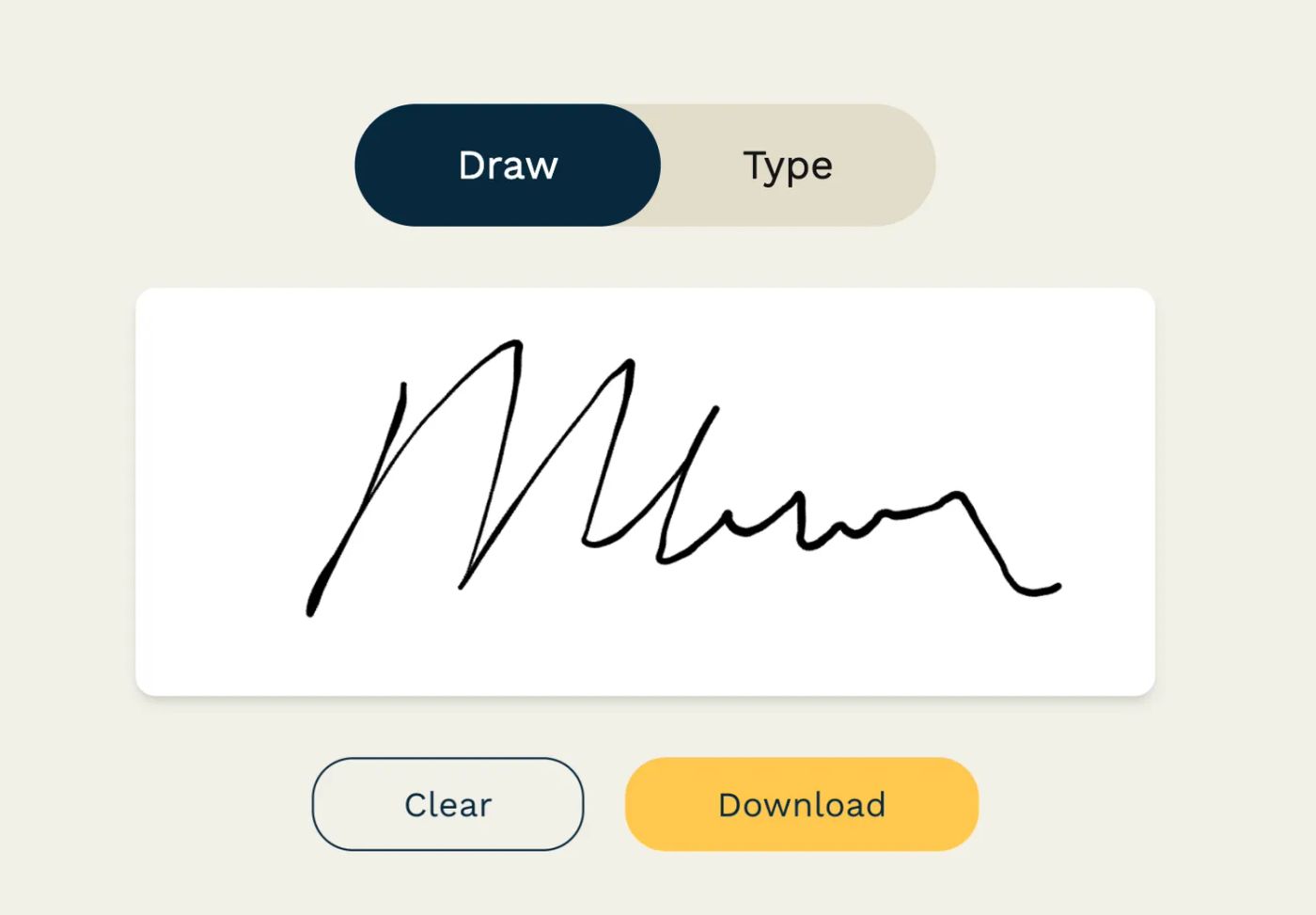
Start with paper and ink. Sign your name on plain white paper using a dark pen. Then take a clear photo with your phone in good light, or scan the page if you’ve got a scanner nearby.

Once you have the image, crop it tightly so only the signature remains. If the background looks gray or uneven, clean it up with any basic image editor. The goal is a simple PNG file that doesn’t bring a white rectangle into the document.

Then in Word:

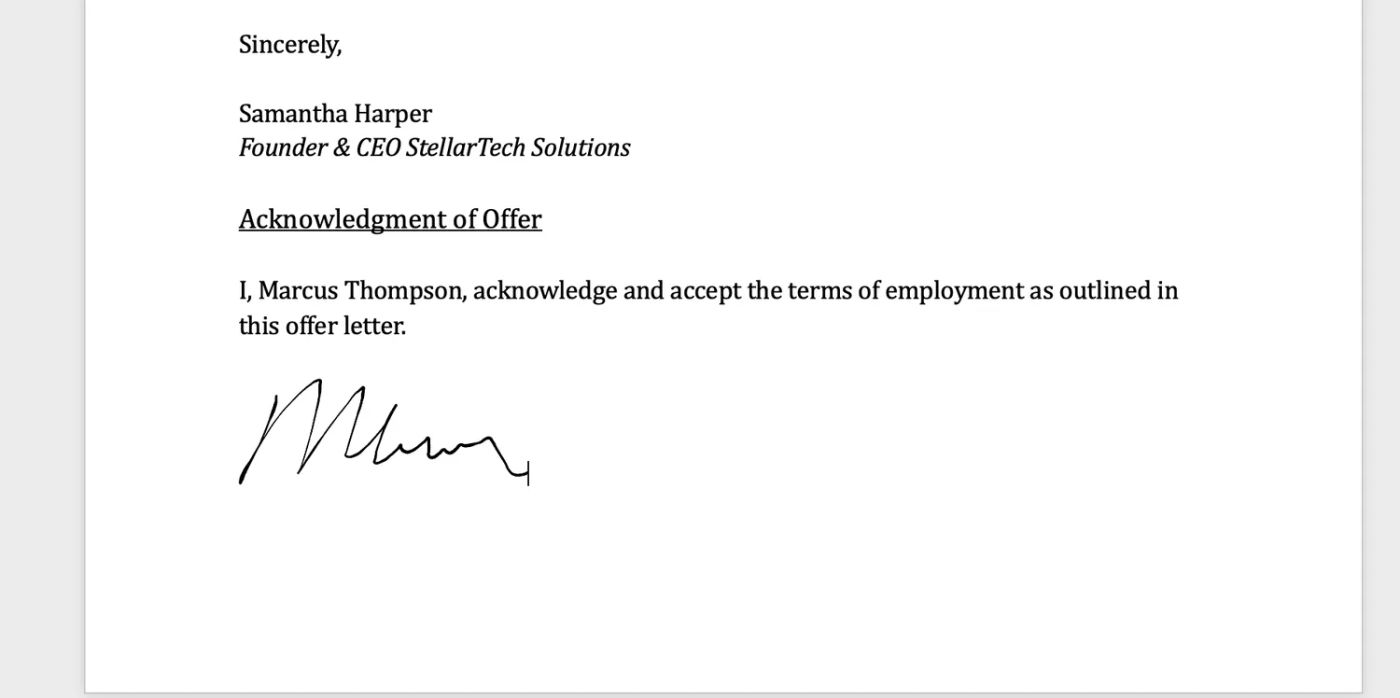
  1. Put your cursor where the signature should go.
  2. Click Insert and choose Pictures.
  3. Select your signature file.
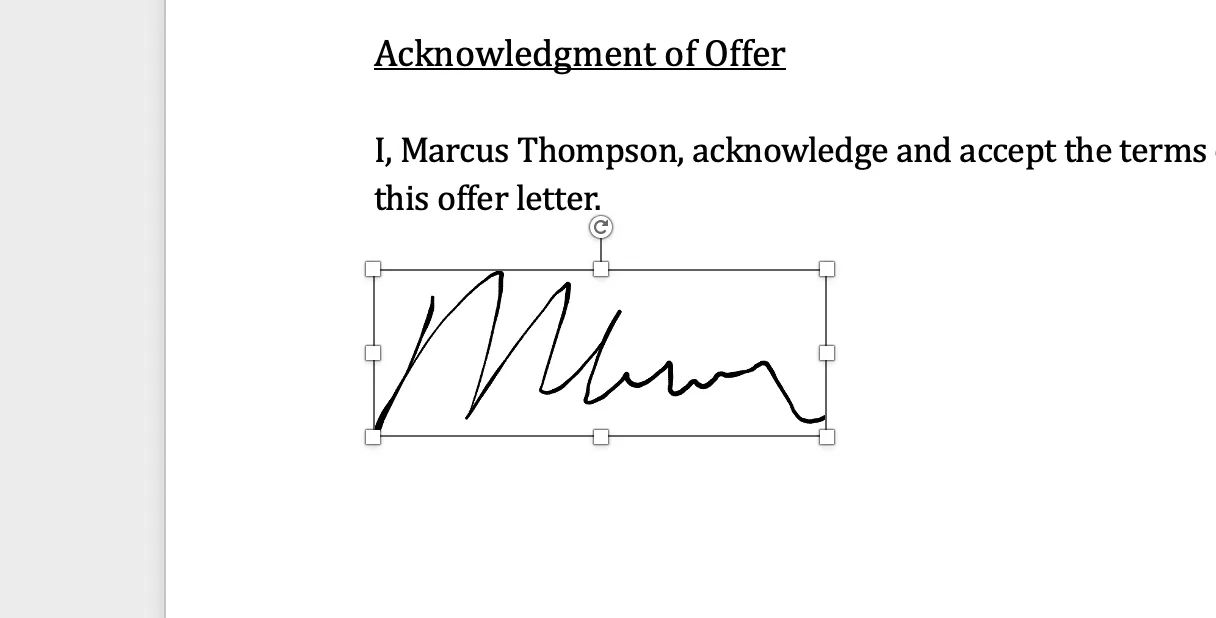
  4. Resize it so it matches a realistic handwritten signature.
  5. Change text wrapping if needed so you can move it cleanly into place.

How to make the image reusable

If you’re going to use the same signature image more than once, store it in a dedicated folder with a clear filename. That saves time when you need to drop it into another document later.

Some people also create a cleaner version of their signature using a tool like this free AI signature generator. That can help if your phone photo is messy or inconsistent, but it doesn’t change the legal limitations of the method. It only improves the visual result.

A quick visual walkthrough can help if you’re doing this for the first time:

Where this method fails

This is the part most how-to guides gloss over. A scanned image is just a picture.

It doesn’t verify identity. It doesn’t create a meaningful audit trail. It doesn’t show whether the signer consented through a structured signing process. Anyone with access to the file can often copy, paste, resize, or reuse the image elsewhere.

Use this for convenience, not proof.

That’s why I treat a scanned signature image as an appearance tool, not a compliance tool. It can make a Word document look complete, but it doesn’t give you much protection if someone later disputes the signature or the document version.

For low-risk internal use, that trade-off may be acceptable. For contracts, it usually isn’t.

Using the Built-in Signature Line Feature in Word

Word’s Signature Line is more formal than pasting in an image. It gives the document a designated signing field, adds structure for the signer, and can make the process look more controlled. For some internal workflows, that’s useful.

How to insert a Signature Line

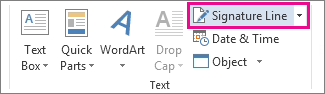
In Word, place your cursor where the signature belongs. Then go to Insert, find the Text area in the ribbon, and choose Signature Line.

Word will prompt you to enter details such as:

  • Signer name
  • Signer title
  • Signer email
  • Instructions for the signer

After you click OK, Word inserts a visible placeholder. The signer can click that line and add a signature through Word’s signing flow.

What Word is actually doing

The Signature Line is not the same thing as a full e-signature platform. It’s a document feature inside Microsoft Word. That matters.

It helps organize where a signature goes. It can also make the file feel more official than dropping in a PNG. If you pair it with certificate-based signing in an internal Microsoft environment, it can support a more controlled process than image insertion alone.

Still, many teams overestimate what this feature solves.

Where teams get a false sense of security

A Word Signature Line can create the impression that the document is “properly signed” because it looks formal and Word treats the file differently after signing. But operationally, there are still gaps compared with dedicated e-signature systems.

Here are the common limitations:

  • Verification is limited: the process doesn’t automatically give you strong signer identity evidence in the way specialized platforms are built to do.
  • Audit detail is thin: you don’t get the same end-to-end signing history, recipient actions, and event log that business teams often need later.
  • Cross-party workflows are clunky: getting multiple external signers through a Word-native process is usually awkward.
  • Compliance fit varies: what works for an internal approval may be the wrong tool for an employment contract or customer agreement.

A Word Signature Line is best treated as a document control feature, not a complete contracting workflow.

That distinction matters most when documents leave your organization. Inside one company, with managed devices and predictable users, Word can be workable. Outside that boundary, the process gets fragile fast. Recipients may not have the right setup, may sign inconsistently, or may return a file that looks signed but creates more questions than answers.

If your goal is convenience inside Microsoft Word, the Signature Line is a reasonable middle-ground option. If your goal is strong proof, clean routing, and lower legal ambiguity, it’s usually not enough.

Comparing Word's Methods vs Dedicated E-Signature Tools

Teams often stick with Word longer than they should because it’s already where the document starts. That’s understandable. Word is familiar, fast, and good at drafting. But signing is a different job from writing.

The sharpest difference shows up when someone challenges the document later. Most tutorials on Word signatures skip that point. They show the clicks and stop there. But this discussion of Word signature limitations highlights the core issue: Word-based DIY methods lack audit trails and tamper-evident seals, and a 2023 American Bar Association study found 68% of litigated e-signature disputes involved such DIY methods.

What the comparison looks like in practice

If I’m reviewing a signing method as an operations decision, I look at five things first:

  • How easy it is for the signer
  • What evidence exists after signing
  • Whether the document can be altered without clear warning
  • How well it works with multiple recipients
  • Whether the process fits the risk level of the document

A pasted image scores well only on speed. Word’s Signature Line improves presentation and structure. A dedicated e-signature platform is built for the full workflow, including delivery, authentication options, tracking, reminders, and post-signing records.

Teams in legal-heavy workflows often evaluate those factors alongside other top legal tech tools, because signing doesn’t happen in isolation. It sits inside a broader chain of review, approval, storage, and dispute prevention.

E-Signature Method Comparison

A dedicated platform also changes the sender experience. You’re no longer emailing attachments and hoping people sign correctly. You upload the document, assign fields, control recipient order, track status, and keep the evidence attached to the workflow.

If you’re comparing vendors specifically because Word’s process is starting to break under real business use, this DocuSign alternative overview is a useful reference point for what teams usually want next: easier setup, cleaner workflows, and less manual chasing.

When Word is enough and when it is not

Word is enough when the consequence of being wrong is small. Think internal acknowledgments, rough approvals, or low-risk sign-offs where everyone already knows each other and no one is relying on the file as a serious legal record.

Word is not enough when the signature has to prove more than intent. Employment documents, customer agreements, property documents, and any process that may later face scrutiny need a signing system, not just a signature mark.

That’s the trade-off in plain terms. Word helps you place a signature. Dedicated e-signature tools help you defend one.

How to Get Secure Legally Binding Signatures with Papersign

When the document starts in Word but needs a stronger signing process, the cleanest move is usually to finish drafting in Word and then send it through a dedicated e-signature workflow.

A practical workflow from Word to signed document

The operational pattern is straightforward:

  1. Finalize the document text in Word.
  2. Export or upload the file into the signing platform.
  3. Add signature fields, date fields, name fields, and any required inputs.
  4. Assign each field to the correct recipient.
  5. Send the document through the platform instead of as a loose attachment.
  6. Monitor progress from the status view rather than chasing people by email.
  7. Store the completed document with its audit history.

That workflow fixes the biggest weakness in Word-native signing. The signature is no longer just a mark on a file. It becomes part of a tracked process.

For HR teams, that means cleaner onboarding packets and consent records. For sales teams, it means fewer stalled proposals. For property managers, it means lease documents move through one consistent channel instead of a string of email attachments and version confusion.

What makes the workflow operationally better

The biggest gain is not cosmetic. It’s control.

A proper e-signature platform keeps the document, the signer actions, and the completion record tied together. You can see who opened the file, who signed, what’s still pending, and when follow-up is needed. That removes a lot of the manual administration that makes document signing feel bigger than it should be.

One feature worth paying attention to is automatic reminders. GetAccept’s review of electronic document signature workflows reports that sales and account teams using automated reminders achieve a 24% higher document completion rate, based on 100,000 documents. That tracks with real operations experience. Most unsigned agreements are not active objections. They’re delays, distractions, or inbox clutter.

The best signature workflow is the one nobody has to babysit.

Other practical advantages matter too:

  • Field control: signers complete only the parts assigned to them
  • Status visibility: senders don’t have to guess whether the document was seen
  • Audit trail: the completion record travels with the signed file
  • Reduced friction: recipients don’t need to edit a Word document correctly just to sign

That’s why teams usually switch after the same failure repeats a few times. Someone signs the wrong place. Someone edits the document after signing. Someone returns a flat image that can’t be verified. Someone says they never received the final version. The issue isn’t Word itself. It’s trying to make a drafting tool act like a signature system.

Understanding Legal Validity and Security Best Practices

If you’re dealing with contracts, the key question isn’t “Can I put an electronic signature in Word?” It’s “Will this hold up if someone disputes it?”

The legal baseline that matters

Electronic signatures became mainstream because legal frameworks gave them standing. The U.S. ESIGN Act, enacted in 2000, established that electronic signatures and records can’t be denied legal effect solely because they are electronic, as explained in this overview of the evolution of signatures and e-signature law. UETA in the United States, along with frameworks such as eIDAS in Europe and related rules in Australia, gave businesses a workable legal base for digital signing.

That doesn’t mean every electronic mark is equally defensible.

GetInsign’s explanation of signature tiers breaks electronic signatures into SES, AES, and QES. Simple Electronic Signatures (SES) are fast but more vulnerable to legal challenge. Advanced Electronic Signatures (AES) and Qualified Electronic Signatures (QES) carry stronger identity and integrity safeguards, and certain documents, including employment contracts in some jurisdictions, may require a higher level like AES or QES.

A simple risk check before you send anything

Before you send a document for signature, check these points:

  • Document type: internal acknowledgment, contract, regulated form, lease, or employment record
  • Signer relationship: internal employee, known vendor, external customer, or unknown counterparty
  • Dispute risk: would you need to prove identity, consent, timing, or document integrity later
  • Jurisdiction: are you operating under U.S., EU, UK, or Australian requirements
  • Evidence: will you have a real audit trail after signing

If you’re still treating signatures as a visual design problem, you’re missing the legal core of the issue. Even something as basic as what counts as a valid signature shape raises practical questions, which this article on whether your signature can be anything explores from a business-use angle.

The safest habit is simple. Match the signature method to the consequence of the document.

For low-risk documents, a lighter method may be perfectly fine. For agreements that affect money, employment, or property, choose the process that gives you usable evidence, not just a finished-looking page.

Common Questions about Electronic Signatures in Word

Is a typed name in Word legally binding

It can be, depending on the context and the process around it. The issue is rarely the typed name by itself. The issue is whether you can show intent, consent, and document integrity if challenged.

Do I need to convert a Word file to PDF before signing

Not always. A document can start in Word and then move into a dedicated signing workflow. Many teams export to PDF first because it locks layout more predictably, but the main point is using the right signing process, not the file format alone.

What’s the difference between an electronic signature and a digital signature

In plain business terms, an electronic signature is the broad category. A digital signature is a more technical, security-backed form of signing that helps verify identity and document integrity.

Is Word’s Signature Line enough for contracts

For low-risk internal scenarios, sometimes. For external contracts or anything likely to face scrutiny, it usually isn’t the best choice because the workflow and evidence are limited compared with dedicated e-signature platforms.

Can multiple people sign the same Word document

Yes, but coordinating that inside Word is usually more awkward than using a dedicated tool. The more signers you add, the more valuable routing, tracking, and audit history become.

If your documents start in Word but need a more secure signing process, Papersign gives you a practical upgrade path. You can upload completed documents, add signature fields, send them for signing, track progress, and keep an audit trail without forcing your team into a clunky manual process. It’s a better fit for HR packets, sales agreements, leases, and other documents where “looks signed” isn’t good enough.