

How to Sign a Document on iPhone in 2026 (2 Easy Methods)
The fastest way to sign a document on iPhone is Apple's built-in Markup tool, which works on any PDF or photo in seconds. For anything business-critical, like a contract you need proof of signing for, a dedicated eSignature app like Papersign free electronic signature software is the better call. Here's both methods, step by step. If you want the wider picture beyond iPhone specifically, our guide on how to electronically sign documents covers the basics that apply across every device.
Two ways to sign a document on your iPhone
Markup is Apple's built-in annotation tool, built into Files, Mail, Messages, and Photos. It's free, it's already on your phone, and it takes seconds. Use it for personal, informal, or one-off documents where you need a signature on the page and nothing more.
A dedicated eSignature app like Papersign is built for anything business-critical: contracts, proposals, HR documents, client agreements. It adds an audit trail, a signed document certificate, reusable templates, and the ability to send to multiple people at once, none of which Markup does.
Quick rule of thumb: if you'd be upset to lose the document or need to prove later exactly who signed and when, skip Markup and use a proper eSignature tool instead.
How to sign a PDF document with Markup
This works exactly the same whether the PDF arrived through Mail, Messages, or the Files app. Here's the process:
- Open the document. Find it in Mail, Messages, or Files, and open it. If prompted, save it to your files first.
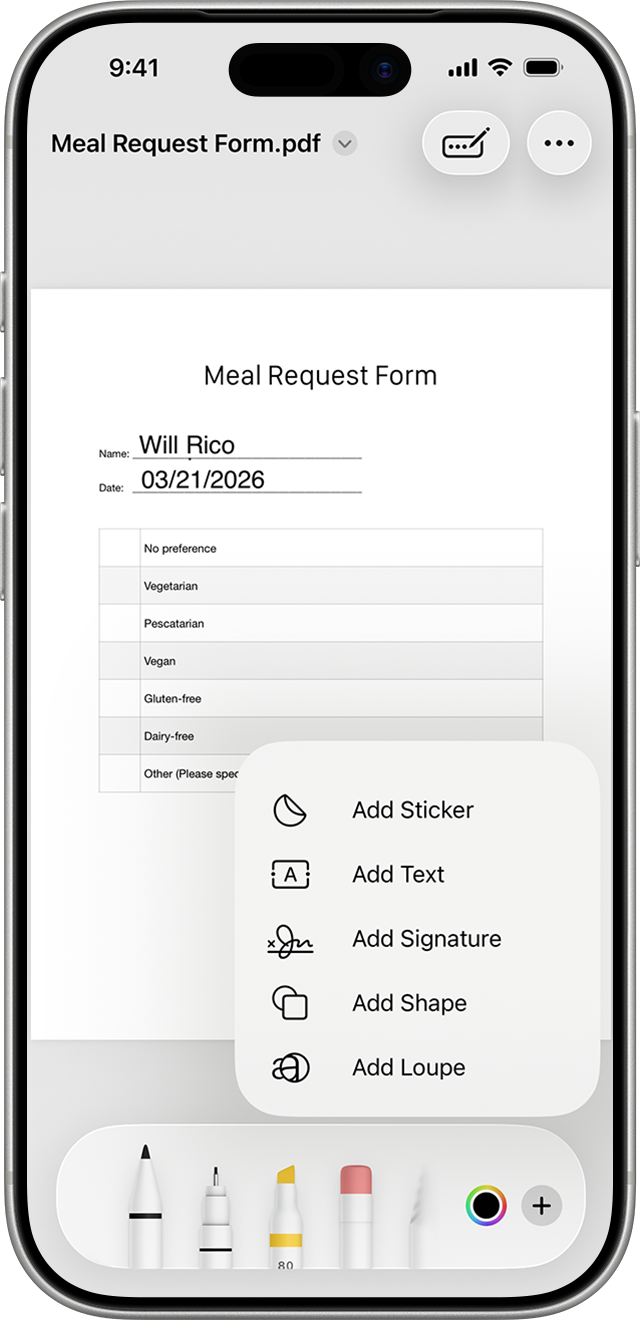
- Access the markup tools. Tap the three-dot icon in the top-right corner of the screen.
- Add your signature. Tap the '+' symbol, then 'Add Signature.' If you've already saved a signature, select it. Otherwise, draw a new one on the spot.
- Place it. Drag your signature to the right spot on the document and resize it as needed.
- Send it off. Share the signed document via email, Messages, or upload it wherever it needs to go.
Done. Signed, sealed, delivered, before your coffee's cold.
How to sign a photo with Markup
Sometimes you need to sign an image or screenshot rather than a PDF. Here's how:
- Open the Photos app and choose the image.
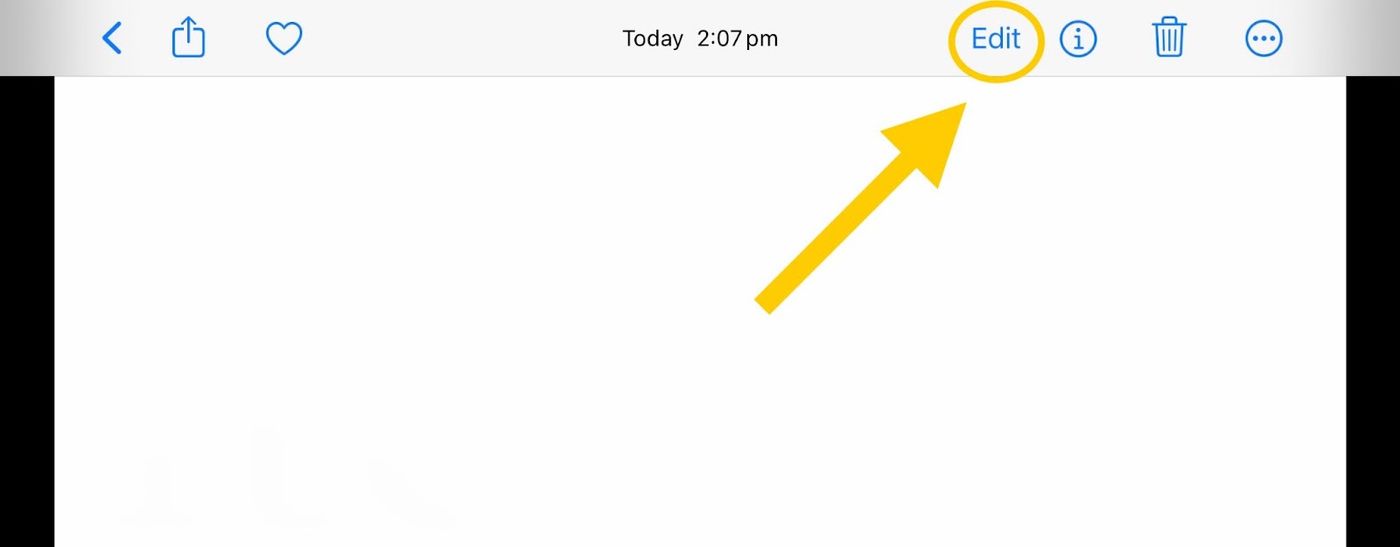
- Tap 'Edit' in the top right.
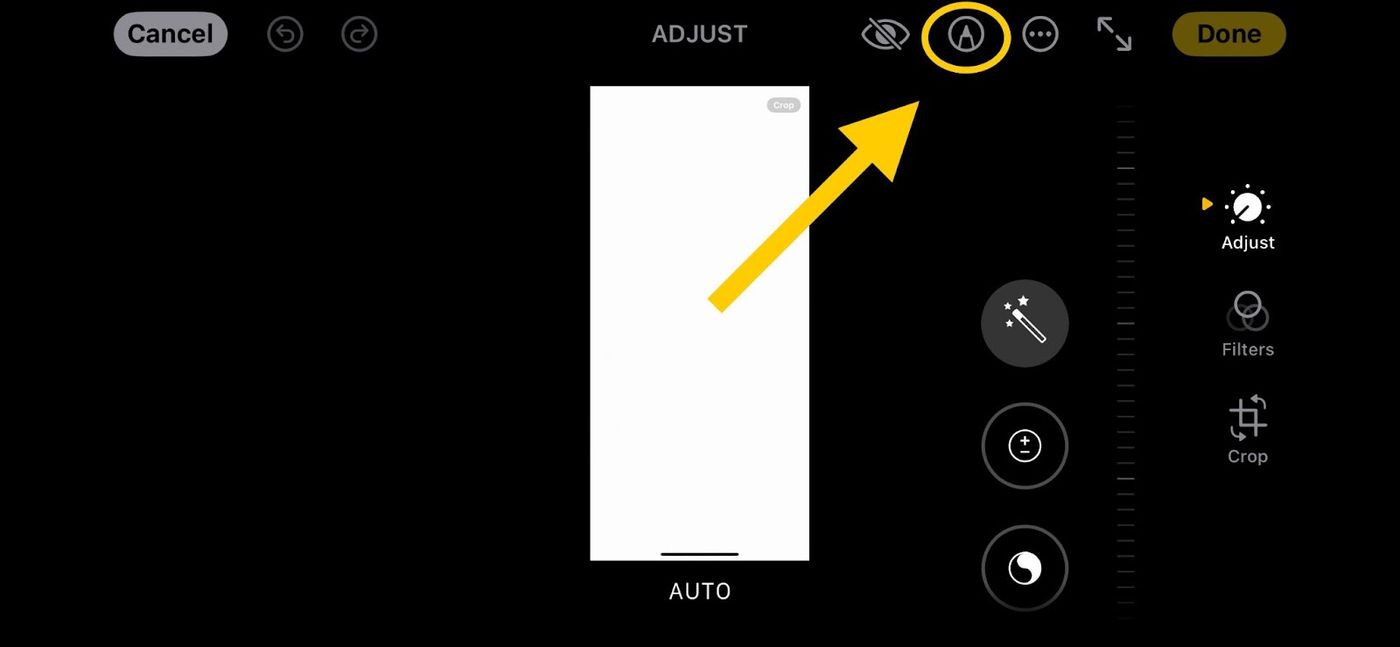
- Tap the Markup icon (it looks like a pen tip).
- Tap '+', then 'Add Signature.'
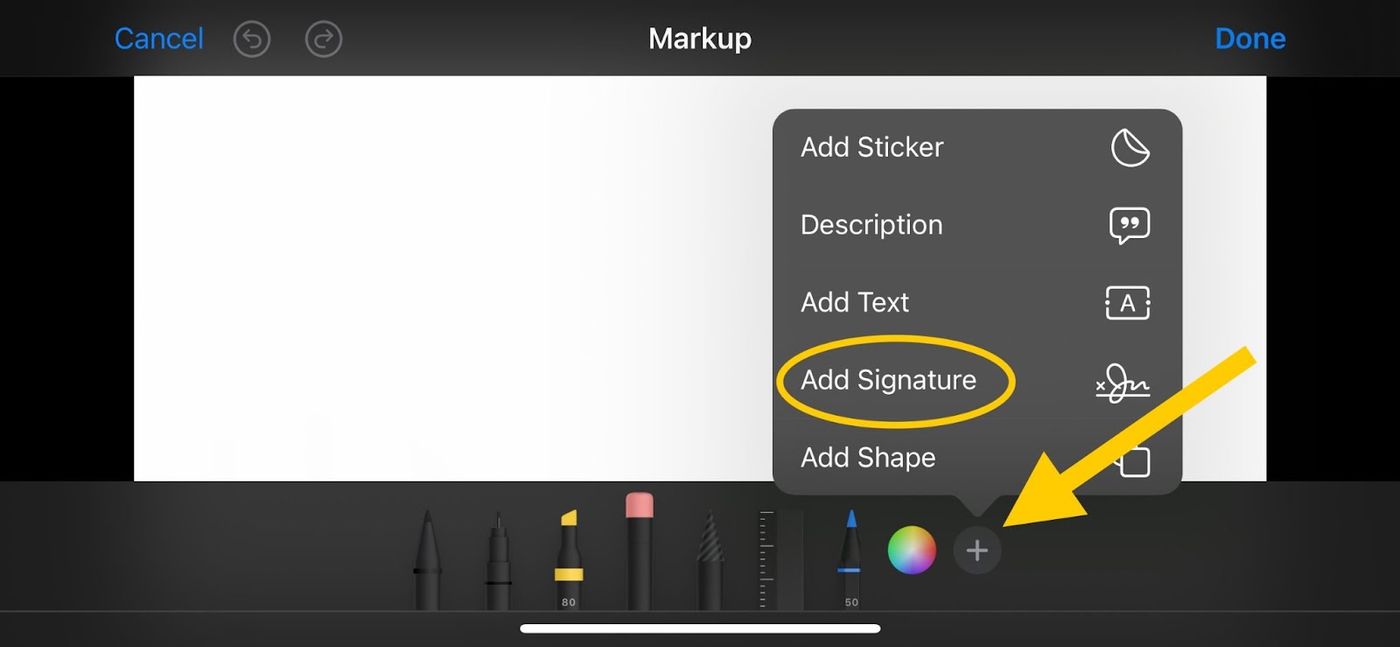
- Select a saved signature, or create a new one directly on the photo.
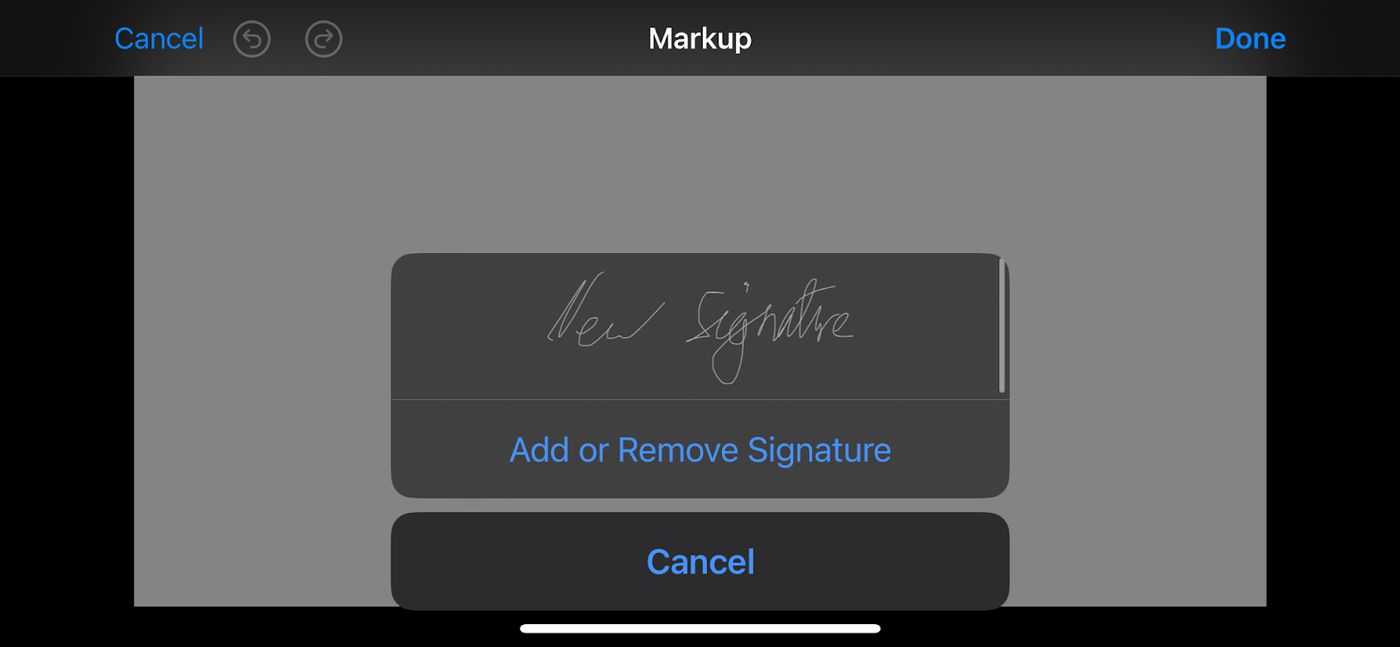
- Move and resize your signature so it's positioned correctly.
- Tap 'Done.' Your signed photo is ready to share.
How to sign a Word document on iPhone
Word documents (.docx) don't open in Markup directly, so you've got two options:
Option 1: Convert to PDF first. Open the Word file in the Word app or Files, tap the share icon, and choose 'Export as PDF' (or 'Print,' then pinch out on the print preview to generate a PDF). Once it's a PDF, follow the Markup steps above.
Option 2: Use Papersign directly. Upload the Word document straight into Papersign's rich editor, which handles Word files without a manual conversion step, add your signature field, and send it. This is the faster route if you're signing Word documents regularly.
How to scan and sign a physical document on iPhone
For a paper document that needs a digital signature:
- Open the Notes app (or Files app) and start a new scan: in Notes, tap the camera icon and choose 'Scan Documents.' In Files, tap the three-dot menu and choose 'Scan Documents.'
- Position the paper in frame. Your iPhone will auto-capture or let you tap the shutter manually.
- Adjust the crop if needed, then tap 'Save.'
- Share the scan as a PDF, then follow the Markup PDF steps above to sign it, or upload it directly to Papersign.
Troubleshooting: when Markup won't cooperate
The Markup icon isn't showing up. Make sure you're opening an actual PDF or image file, not a preview thumbnail. If it's still missing in Mail, tap the attachment to open it fully first, then look for the icon in the top-right toolbar.
My signature won't save. Draw your signature slowly and fully within the signature box before tapping 'Done.' If it still won't save, close and reopen the document. Rarely, a low-storage iPhone will fail to save new signatures until you free up space.
How do I send the signed PDF back? Tap the share icon (square with an arrow) after signing, then choose Mail, Messages, or the app you need to upload to. If you opened the file from an email, you can also reply directly to that same email with the signed version attached.
When Markup isn't enough for business use
Markup is great for one-off, low-stakes signatures. It runs into real limits the moment signing becomes a regular part of how you do business:
- No bulk signing. Sending a batch of documents means repeating the same manual process for each one.
- No additional fields. Dates, initials, or custom text next to your signature aren't well supported.
- No team collaboration. Passing a document around for multiple signatures means manually forwarding files back and forth.
- Limited security and compliance. Markup has no audit trail, so there's no record of who signed what and when if a dispute comes up.
- No workflow automation. Repetitive signing tasks still require the same manual steps every time.
If any of these sound like your business, that's the signal to move to a dedicated tool.
Why you need a dedicated eSign tool for business
Document templates and customization
Skip starting from scratch every time. Reusable templates keep your contracts, forms, and agreements consistent across every client or hire.
Bulk sending and signing
Send one document to many recipients, or sign several at once, useful for HR onboarding, sales proposals, or managing multiple clients at a time.
Audit trails and compliance
Papersign's audit trail tracks every action on a document, timestamped, so you have proof of who viewed and signed it and when. That matters most in finance, legal, and healthcare, where document history needs to hold up.
Anywhere access
Papersign is cloud-based and mobile-responsive, so your documents are accessible whether you're on your phone, tablet, or desktop.
One more thing: everything above works exactly the same on iPad, from Markup through to Papersign's mobile experience.
Send your next contract with Papersign
Ready to move past one-off Markup signatures? Send your next contract for signature with Papersign, free, and get an audit trail and signed certificate with every document.
FAQs
Can I sign a Word document on my iPhone?
Yes. Convert it to PDF first using the Word app's export option or the Files app's print-to-PDF trick, then sign it with Markup. Or upload the Word file directly into Papersign, which accepts Word documents without a manual conversion step.
Is a signature made with iPhone's Markup tool legally binding?
In many jurisdictions, yes, a Markup signature can count as a legally binding electronic signature for most everyday documents. But Markup has no audit trail, so if you ever need to prove who signed and when, a dedicated eSignature tool gives you far stronger evidence.
How do I sign a document sent to me by email on iPhone?
Open the attachment in Mail, tap the three-dot icon, then '+' and 'Add Signature.' Place your signature, then share the signed file back through Mail, Messages, or upload it wherever it needs to go.
Can I scan and sign a paper document using only my iPhone?
Yes. Use the Notes app or Files app's built-in document scanner to photograph the paper document as a PDF, then sign that PDF with Markup or upload it to Papersign.
What's the difference between signing with Markup and signing with an eSignature app like Papersign?
Markup is free and built into your iPhone, ideal for quick, one-off signatures. Papersign adds an audit trail, signed document certificate, reusable templates, and bulk sending, which matter once signing becomes a regular part of running your business.
Why isn't the Markup icon showing up on my iPhone?
Make sure you've opened the full file, not a preview or thumbnail. Tap the attachment fully first, then check the top-right toolbar for the three-dot icon that reveals Markup options.
Does signing on an iPhone work the same way on an iPad?
Yes. Every method in this guide, Markup and Papersign alike, works the same way on iPad as it does on iPhone.
Suggested reading


Papersign (“Papersign” or “we”) provides the information, data, links and other materials on this page (collectively, “Information”) for informational and educational purposes only. We do not warrant or represent the accuracy, completeness, currency, or suitability of any Information for any use or purpose. Papersign is not a licensed legal provider nor is it providing any legal advice; the Information should not be so construed or used. Nothing contained in the Information is intended to create an attorney-client relationship, to replace the services of a licensed, trained attorney or legal professional, or to be a substitute for the legal advice of an attorney or trained legal professional licensed in your state/jurisdiction. Before taking any action, including using our services to execute contracts or other documents, You should always first consult an attorney licensed in your state/jurisdiction, in each instance, regarding the issues address by the Information. Please never disregard professional legal advice or delay in seeking it because of something you have read in the information.